OFFICE OF ACADEMIC ENGAGEMENT
Employee Resource Guide
Certificate-Based Signatures
ERG 900.XX
A certificate-based signature, like a conventional handwritten signature, identifies the person signing a document and protected that changes were not made after it was signed. This satisfies legal requirement to prove your identity. Never sign a document by simply typing your name or using the pen tool without certification. If you have questions regarding the instructions, please reach out to an OAE admin member.
Unlike a handwritten signature, a certificate-based signature is difficult to forge because it contains encrypted information that is unique to the signer. It can be easily verified and informs recipients whether the document was modified after the signer initially signed the document.
To sign a document with a certificate-based signature, you must obtain a digital ID or create a self-signed digital ID in Acrobat or Adobe Reader. The digital ID contains a private key and a certificate with a public key and more. The private key is used to create the certificate-based signature. The certificate is a credential that is automatically applied to the signed document. The signature is verified when recipients open the document.
TO CREATE YOUR CERTIFIED SIGNATURE
- Open Adobe Acrobat Reader
- Click Acrobat > Preferences
- Select Signatures
- On the right, click More for Identities and Trusted Certificates
- Select Digital ID, then click on the Add ID icon
- Select A new digital ID I want to create it now. Click Next.
- Fill out the form with your Name, Org Unit and Name, email address, 2048-bit RSA algorithm, and choose digital signature and data encryption. Click Next.
- Type a password for the Digital ID file. Reconfirm your password and click Finish.
- The ID is created. You can export and send your certificate file to contracts who can use it to validate your signature.
TO USE YOUR CERTIFIED SIGNATURE
- Click on provided signature box
- Click Add digital ID
- Add from file
- Enter password
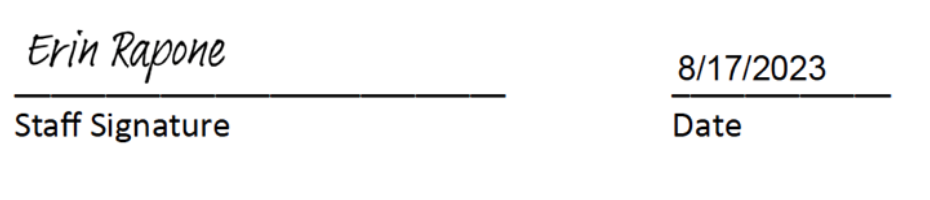
EXAMPLE OF UNCERTIFIED SIGNATURE
CERTIFIED SIGNATURE